User Guide
TutorSynch is a desktop app built for independent tutors, designed to help manage student contacts, academic details and payments with ease. It is optimized for use via a Command Line Interface (CLI) while still offering the benefits of a Graphical User Interface (GUI). If you can type fast, TutorSynch can handle your contact management, payment tracking and student data organisation more efficiently than traditional GUI-only apps.
- Quick start
-
Features
- Viewing help :
help - Adding a student :
add - Listing all students :
list -
Editing a student :
edit - Bulk removal of tags:
untag - Updating a student’s payment information :
payment - Sorting the list of students :
sort - Locating students by name :
find - Filter list of students :
filter - Deleting a student :
delete - Switching the Theme of the program :
toggletheme - Deleting multiple students :
clear - Purging all entries :
purge - Exiting the program :
exit - Saving the data
- Editing the data file
- Viewing help :
- FAQ
- Known issues
-
Glossary
-
Fields in TutorSynch
- Prefix
- Index :
INDEX - Name :
n/NAME - Phone number :
p/PHONE_NUMBER - Email :
e/EMAIL - Address :
a/ADDRESS - Education :
l/EDUCATION - Current Year :
cy/CURRENT_YEAR - Current Grade :
cg/CURRENT_GRADE - Expected Grade :
eg/Expected_GRADE - Payment Fee:
f/FEE - Payment Date:
d/PAYMENT_DATE - Payment Status:
s/PAYMENT_STATUS - Tag :
t/TAG
-
Fields in TutorSynch
- Command summary
Quick start
-
Ensure you have Java
17or above installed in your Computer.
Mac users: Ensure you have the precise JDK version prescribed here. -
Download the latest
.jarfile from here. -
Copy the file to the folder you want to use as the home folder for your TutorSynch.
-
Open a command terminal,
cdinto the folder you put the jar file in, and use thejava -jar tutorsynch.jarcommand to run the application.
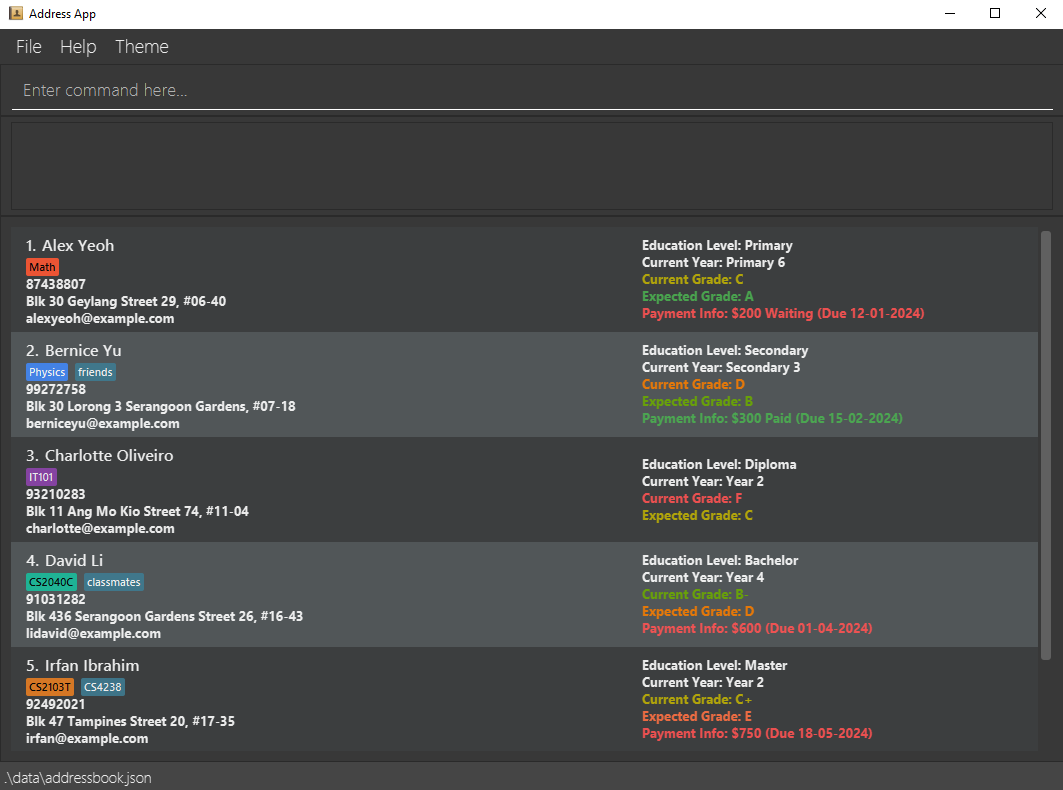
A GUI similar to the below should appear in a few seconds. Note how the app contains some sample data.
-
Type the command in the command box and press Enter to execute it. e.g. typing
helpand pressing Enter will open the help window.
Some example commands you can try:-
list: Lists all contacts. -
add n/John Doe p/98765432 e/johnd@example.com a/John street, block 123, #01-01: Adds a contact namedJohn Doeto the Address Book. -
delete 3: Deletes the 3rd contact shown in the current list. -
purge: Deletes all contacts. -
exit: Exits the app.
-
-
Refer to the Features below for details of each command.
Features
 Notes about the command format:
-
Words in
UPPER_CASEare the parameters to be supplied by the user.
e.g. inadd n/NAME,NAMEis a parameter which can be used asadd n/John Doe. -
Items in square brackets are optional.
e.g.n/NAME [t/TAG]can be used asn/John Doe t/friendor simply asn/John Doe. -
Items with
…after them can be used less than or equals to 8 times, including zero times.
e.g.[t/TAG]…can be used ast/cs4238,t/cs2103 t/GEA1000etc. - Any tags can be written as an alphanumeric tag containing no spaces and at most 10 characters long
- Optional: Tags can be appended with a
#followed by 6 hexadecimal color code for a custom color. (i.e.CS2040C#ED9E49) - Tags without a hexadecimal color code appended will resolve to a default color.
- Optional: Tags can be appended with a
-
Parameters can be in any order.
e.g. if the command specifiesn/NAME p/PHONE_NUMBER,p/PHONE_NUMBER n/NAMEis also acceptable. -
Only use the prefixes explicitly defined for a given command. Using unsupported prefixes—such as those from other commands—may result in them being interpreted as plaintext (i.e.
f/1000is not a valid prefix for theaddcommand and will not be parsed correctly). Prefixes are strictly lower case. -
Commands that do not take in parameters (i.e.
help,list,exit,purge,sort,toggletheme) will show error when arguments are provided. - If you are using the PDF version of this document, be careful when copying and pasting commands that span multiple lines as space characters surrounding line-breaks may be omitted when copied over to the application.
 Constraints:
The intended use-case of TutorSynch application includes only the English language. Use of other language (i.e. Chinese characters) may result in TutorSynch to behave in unexpected ways.
Constraints:Parameters must conform to their respective formats and constraints; otherwise, the command may be rejected. All parameter constraints can be found in the glossary.
Viewing help : help
Shows a message explaining how to access the help page. The help window will block any and all activity with the main window until it is closed.

Format: help
Adding a student : add
Adds a student to the address book.
Format:
add n/NAME p/PHONE_NUMBER e/EMAIL a/ADDRESS [l/EDUCATION] [cy/CURRENT_YEAR] [cg/CURRENT_GRADE] [eg/EXP_GRADE] [t/TAG]…
- EDUCATION is an optional field, that can be used to store a student’s Education Level (i.e.
Primary,Diploma,Junior College, etc.) - CURRENT_YEAR is an optional field, that can be used to store a student’s Current Year info (i.e.
Grade 12,Year 1, etc.) - CURRENT_GRADE is an optional field, that can be used to store a student’s Current Grade info (i.e.
B+,D-,FAIL, etc.) - EXP_GRADE is an optional field, that can be used to store a student’s Expected Grade info (i.e.
A+,C-,PASS, etc.)
 Tip: Duplicate detection for repeated contacts are
based on CASE-INSENSITIVE matching of NAMEs or CASE-INSENSITIVE matching of EMAILs.
Tip: Duplicate detection for repeated contacts are
based on CASE-INSENSITIVE matching of NAMEs or CASE-INSENSITIVE matching of EMAILs.For example:
Jane Doe (single-spaced) and Jane Doe (double-spaced) will be treated as 2 distinct contacts,
but Jane Doe and jane doe will be treated as duplicated contacts.For example:
janedoe@email.com and JaneDoe@email.com will be treated as duplicated contacts.
Tip: A student can have less than or equals to 8
unique TAGs each (including 0). Tip: Tags names should be at most 10 characters long and
should not contain spaces. Tip:
You can add a hexadecimal color code to any TAG by appending #RRGGBB after the tag name.
For example: t/CS2040#ED9E49. This allows tags to be visually color-coded in the UI. Constraints:For
add command, the parameters EDUCATION, CURRENT_YEAR, CURRENT_GRADE, EXP_GRADE and TAG cannot be used with an empty string.
(i.e. add n/Benny p/12345678 e/benny@example.com a/Blk 123 cg/ eg/ t/ is invalid)
Examples:
add n/John Doe p/98765432 e/johnd@example.com a/John street, block 123, #01-01add n/Betsy Crowe t/friend e/betsycrowe@example.com a/Newgate Prison p/1234567 cg/C+ t/CS2030C
Listing all students : list
Shows a list of all students in the address book.
Format: list
Editing a student : edit
Edits an existing student in the address book.
Format:
edit INDEX [n/NAME] [p/PHONE] [e/EMAIL] [a/ADDRESS] [l/EDUCATION] [cy/CURRENT_YEAR] [cg/CURRENT_GRADE] [eg/EXP_GRADE] [t/TAG]… [t+/TAG_TO_APPEND]… [t-/TAG_TO_REMOVE]…
- Edits the student at the specified
INDEX. The index refers to the index number shown in the displayed student list. The index must be a positive integer 1, 2, 3, … - At least one of the optional fields must be provided.
- Existing values will be updated to the input values.
Tip: Duplicate detection for repeated contacts are
based on CASE-INSENSITIVE matching of NAMEs or CASE-INSENSITIVE matching of EMAILs.For example:
Jane Doe (single-spaced) and Jane Doe (double-spaced) will be treated as 2 distinct contacts,
but Jane Doe and jane doe will be treated as duplicated contacts.For example:
janedoe@email.com and JaneDoe@email.com will be treated as duplicated contacts.
Tip: A student can have less than or equals to 8
unique TAGs each (including 0). Tip: Tag name should be at most 10 characters long and
should not contain spaces. Tip:
You can add a hexadecimal color code to any TAG by appending #RRGGBB after the tag name.
For example: t/CS2040#ED9E49. This allows tags to be visually color-coded in the UI. Tip:
For edit command, the parameter TAG can be used with any varying amount of TAGs or strictly a single TAG prefix occurrence followed by an empty string.
If a TAG prefix is followed by an empty string (i.e. edit 1 t/ cg/A+), the edited student will be updated with NO tags. Constraints:For
edit command, the parameters TAG_TO_APPEND and TAG_TO_REMOVE cannot be used with an empty string.
(i.e. edit 1 t+/ cg/A+ is invalid)
Tip:
For edit command, the parameters EDUCATION, CURRENT_YEAR, CURRENT_GRADE and EXP_GRADE can be used with an empty string to mark as non-applicable.
(i.e. edit 1 cg/ eg/ t/CS2040C)Examples:
-
edit 1 p/91234567 e/johndoe@example.comEdits the phone number and email address of the 1st student to be91234567andjohndoe@example.comrespectively.
Tag Editing : t/, t+/, t-/
- When editing tags, any number of
t/,t+/ort-/may be provided, and the order of execution is as follows:
- TAGs prefixed with
t/form the new list of tags (overwriting the old tags), if none are provided, old list of tags is used for the next steps. - TAGs prefixed with
t+/are added to the current list. If the tag already exists, the updated list remains unchanged as tags are necessary to be unique. - TAGs prefixed with
t-/are removed from the list provided by the last step. If the tag to be removed does not exist, the app silently continues with the rest. - The final tag list is updated to the student, and should have less than or equals to 8 unique tags.
Tip:
For edit command, you may wish to re-color the TAGs. As such, we recommend overwriting the TAGs using the t/ prefixes, as attempting to APPEND the new TAG with t+/ will not work given the way the Set of TAGs are set up.Example Setup: Person indexed 1 has
MATHS#123456 and SCIENCE#1A2B3C, and we wish to change MATHS to have the color code #ABCDEF instead.Solution:
edit 1 t/MATHS#ABCDEF t/SCIENCE#1A2B3C
Examples:
-
edit 2 n/Betsy Crower t/Edits the name of the 2nd person to beBetsy Crowerand clears all existing tags. -
edit 2 t-/MathsEdits the tags of the 2nd person by removingMathsfrom existing list of tags. -
edit 2 t/Maths t/Science t-/ScienceEdits the tags of the 2nd person by clearing all existing tags and adding onlyMaths. -
edit 1 t+/friend t+/CS2030C#1E3BC3appendsfriendandCS2030C#1E3BC3to existing tags of the 1st person (without overwriting or removing).
Bulk removal of tags: untag
Removes all occurrences of the specified tags from all student records.
Format: untag t/TAG [t/TAG]...
- Removes all matching tags from all student records.
- If a tag does not exist in any student record, it will be ignored.
- At least one TAG must be included for the command to work.
Constraints:For
untag command, the parameter TAG cannot be used with an empty string.
(i.e. untag t/ is invalid)
Examples:
-
untag t/Math
Removes the tagMathfrom all student records. -
untag t/Math t/Science
Removes the tagsMathandSciencefrom all student records.
Updating a student’s payment information : payment
Updates the payment information of an existing student in the address book.
Format: payment INDEX [f/FEE] [d/PAYMENT_DATE] [s/PAYMENT_STATUS]
- Updates the student at the specified
INDEX. The index refers to the index number shown in the displayed student list. The index must be a positive integer 1, 2, 3, … - Provided fields will be updated with the input values. Any missing fields will be removed by default.
- If none of the optional fields are provided, the specified student’s payment information will be removed.
-
FEEshould be an unsigned integer (positive, no decimals, and less than or equal to $2,147,483,647), and will be removed if entered as0. It can be used to store a Student’s Payment Fee. -
PAYMENT_DATEshould be in the formatDD-MM-YYYY. It can be used to store a Student’s Payment Date. -
PAYMENT_STATUSshould be eitherPaidorWaiting(case-insensitive). It can be used to store a Student’s Payment Status.
Constraints:For
payment command, the parameters FEE, PAYMENT_DATE and PAYMENT_STATUS cannot be used with an empty string.
(i.e. payment 1 f/ d/ s/ is invalid)
Examples:
-
payment 1 f/1000 d/14-11-2000 s/paidUpdates the tutoring fee, payment date and status to be1000,14-11-2000andpaidrespectively. -
payment 2Removes the payment information of the 2nd student.
Sorting the list of students : sort
Sorts the list of students alphabetically based on their name.
Subsequent additions are inserted at the bottom.
Format: sort
Locating students by name : find
Finds students whose names contain any of the given keywords.
Format: find KEYWORD [MORE_KEYWORDS]
- The search is case-insensitive. e.g.
hanswill matchHans - The order of the keywords does not matter. e.g.
Hans Bowill matchBo Hans - Only the name is searched.
- Only full words will be matched e.g.
Hanwill not matchHans - Persons matching at least one keyword will be returned (i.e.
ORsearch). e.g.Hans Bowill returnHans Gruber,Bo Yang
Examples:
-
find JohnreturnsjohnandJohn Doe -
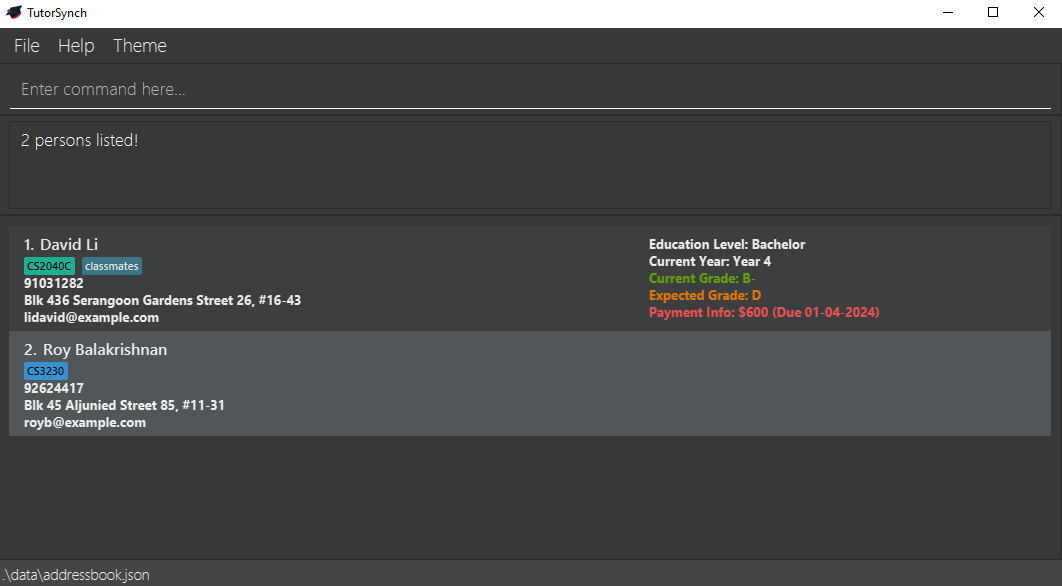
find li royreturnsDavid Li,Roy Balakrishnan
Filter list of students : filter
Filters list of students who match all filter conditions.
Format: filter [l/EDUCATION] [cg/CURRENT_GRADE] [eg/EXP_GRADE] [t/TAG]…
- Filters list to show all students who fulfill ALL filter conditions.
- At least one of the optional fields must be provided.
- Empty fields are accepted
- If
[l/EDUCATION] [cg/CURRENT_GRADE] [eg/EXP_GRADE]are empty e.g.l/ cg/ eg/, filter will show students without values in respective fields stated. -
[t/TAG]…an empty tag field will trigger an error.
- If
Deleting a student : delete
Deletes the specified student from the address book.
Format: delete INDEX
- Deletes the student at the specified
INDEX. - The index refers to the index number shown in the displayed student list.
- The index must be a positive integer 1, 2, 3, …
Examples:
-
listfollowed bydelete 2deletes the 2nd student in the address book. -
find Irfanfollowed bydelete 1deletes the 1st student in the results of thefindcommand.
Switching the Theme of the program : toggletheme
- Switches the theme of the program from Dark Mode to Light Mode or vice versa.
- Currently selected theme will be saved to the as a User Preference Setting and loaded upon next boot.
Format: toggletheme
Deleting multiple students : clear
Deletes multiple students:
- in sequence from a starting to ending index OR
- based on given tags (student is deleted if they have at least one of the provided tags).
Format: clear i/START_INDEX...END_INDEX OR clear t/TAG [t/TAG]...
- Index refers to the index number shown in the displayed student list.
- Indices must be positive integers 1, 2, 3, …
- Starting index must be strictly smaller than ending index.
- Tags provided must be valid tags (color code not necessary) in the format prescribed above.
- At least one tag must be provided.
- Each student in the address book is checked for the tags provided.
- If the student has at least one tag that matches, they will be deleted.
- If hexadecimal for color coding is provided in tag, hexadecimal color will be ignored
- IMPORTANT: using both types of prefixes together will yield an error.
Constraints:For
clear command, the parameter TAG cannot be used with an empty string.
(i.e. clear t/ is invalid)
Examples:
-
listfollowed byclear i/2...5will delete students at indices 2, 3, 4 and 5 for a total of four deletions. -
clear t/friends t/enemieswill delete students who have either thefriendstag orenemeiestag.
Purging all entries : purge
Purges all entries from the address book.
Format: purge
Exiting the program : exit
Exits the program.
Format: exit
Saving the data
TutorSynch data are saved in the hard disk automatically after any command that changes the data. There is no need to save manually.
Editing the data file
TutorSynch data are saved automatically as a JSON file [JAR file location]/data/addressbook.json. Advanced users are
welcome to update data directly by editing that data file.
Caution:
If your changes to the data file makes its format invalid, TutorSynch will discard all data and start with an empty data file at the next run. Hence, it is recommended to take a backup of the file before editing it.Furthermore, certain edits can cause TutorSynch to behave in unexpected ways (e.g., if a value entered is outside the acceptable range). Therefore, edit the data file only if you are confident that you can update it correctly.
FAQ
Q: How do I transfer my data to another Computer?
A: Install the app on the other computer. After it runs once, it will create a default data file at
[JAR file location]/data/addressbook.json. To transfer your data, overwrite this file with the addressbook.json file
from your original computer.
Caution:
Before doing this, ensure that the data file is valid and has not been corrupted or manually edited in a way that breaks the expected format. Invalid or out-of-range values may cause TutorSynch to start with an empty data file or behave unpredictably.It’s strongly recommended to make a backup of your data file before any manual edits or transfers.
Known issues
-
When using multiple screens, if you move the application to a secondary screen, and later switch to using only
the primary screen, the GUI will open off-screen. The remedy is to delete the
preferences.jsonfile created by the application before running the application again. - If you need to see your truncated NAME, EMAIL or ADDRESS, increase your window size for the application until it is no longer truncated.
- EMAIL may still be truncated, if it is too long even when window size is the maximum
-
When adding/editing many tags, in certain scenarios where the tags begin to wrap (especially on lower screen resolution), the tags may inadvertently overlap onto the remaining Person’s information field, as shown in the screenshot below.
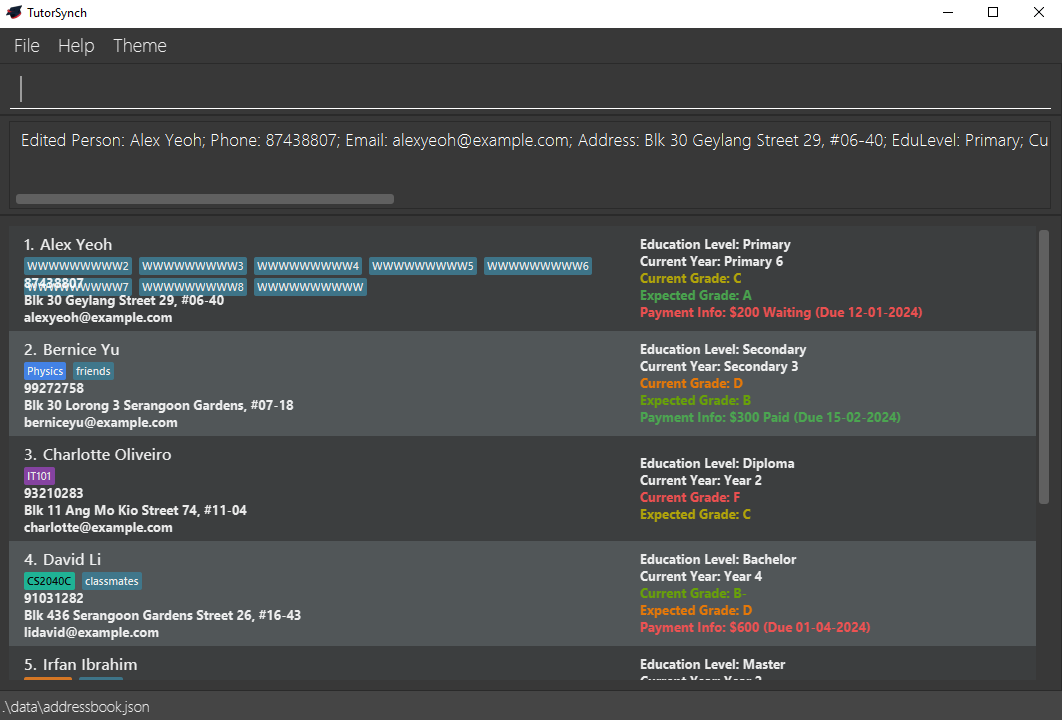 The remedy is to click on the specific Person’s Card, which will trigger a CSS style update, so that the wrapping
works as intended.
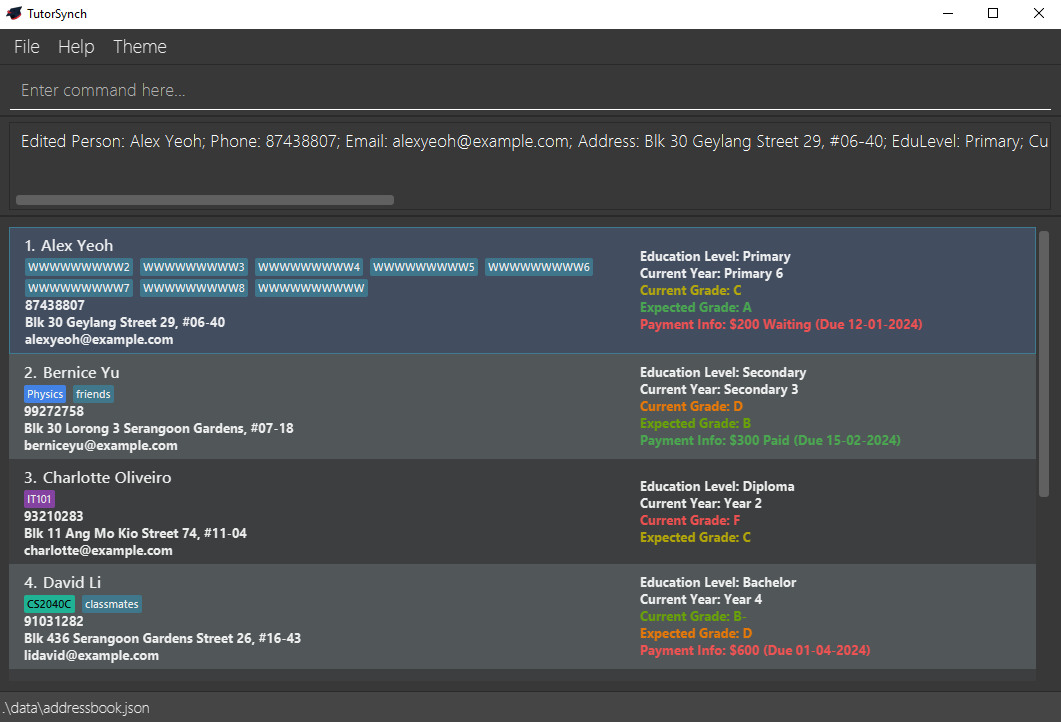
The remedy is to click on the specific Person’s Card, which will trigger a CSS style update, so that the wrapping
works as intended.
-
When local system date changes occurs, in certain scenarios where a student’s
Payment Infowould be displayed from one color to another, the visual feedback of these changes might not be properly displayed. The remedy is to click on the specific Person’s Card, which will trigger a CSS style update to re-render the Peron’s Payment Info. For more information about the issue, click here. ——————————————————————————————————————–
Glossary
Fields in TutorSynch
The descriptions for the fields state the intentions of the dev team. However, as long as the constraints are kept to, users may freely utilise the fields to suit their own needs.
Prefix
A prefix is used to denote the start of a field when using commands that require multiple inputs. A prefix always follows the following format: a one or two letter lowercase shortcode followed by a forward slash. E.g., n/
Index : INDEX
- Prefix: none
-
Used in:
edit,delete,payment -
Other Versions:
- Sequence of Indices :
i/START_INDEX...END_INDEXused inclear
- Sequence of Indices :
The numerical identifier used to refer to a contact in a list. Indices are not static, they are dynamically generated based on the current visible list that is being shown in TutorSynch.
For example, when using the find or filter command, the generated results will have their own indices. These indices can then be used in other commands.
Name : n/NAME
Stores the name of a contact. This could be the name of a student, a parent, etc. (depending on the needs of the user)
Constraints:NAME must be between 1 and 65 characters. It may also contain spaces and these special characters (
,/').(Do note that extremely long NAME may be truncated unless you increase the window size)
Phone number : p/PHONE_NUMBER
Stores phone number(s) of a person. The field
For example, a user may choose to indicate multiple phone numbers and label them using the below format.
Constraints:Constraints apply for each PHONE number
PHONE numbers must be at least 3 digits.
(Do note that extremely long PHONE may be truncated unless you increase the window size)
PHONE numbers should only consist of numbers and spaces. Please use spaces in place of dashes
PHONE numbers may include an optional + at the start to indicate country code
PHONE numbers may include an optional round bracket () at the end with alphanumeric characters for labelling of number
The total length of all phone number(s) is limited to a maximum of 85 characters
FORMAT: [+] PHONE_NUMBER [(label)] - Labels in square brackets are optional Examples:
+65 8888 8888 (Home), +65 8889 8888 (Home) +65 9888 8888 (Office)
Email : e/EMAIL
Stores a single email address. This could be the email of a student, a parent, etc. (depending on the needs of the user)
Constraints:EMAIL must be between 1 and 254 characters.
(Do note that extremely long EMAIL may be truncated even after you increase the window size)
EMAIL should also be of the format
local-part@domain such that:1. The local-part should only contain alphanumeric characters and these special characters (
+_.-). The local-part may not start or end with any special characters and each special character must be separated by at least 1 alphanumeric character.2. This is followed by a ‘@’ and then a domain name. The domain name is made up of domain labels separated by periods. The domain name must:
* end with a domain label at least 2 characters long.
* have each domain label start and end with alphanumeric characters.
* have each domain label consist of alphanumeric characters, separated only by hyphens, if any.
* have minimally 2 domain labels separated by at least 1 ‘.’ special character.
* separate each special character with at least 1 alphanumeric character.
Address : a/ADDRESS
Stores an address. This could be the home address of a student, venue of tution session, etc. (depending on the needs of the user)
Constraints:ADDRESS must be between 1 and 85 characters.
(Do note that extremely long ADDRESS may be truncated unless you increase the window size)
Education : l/EDUCATION
Stores the education level of a student, if applicable. Users may use this to track the current level of education of the contact (e.g., primary, secondary, tertiary, etc.)
Constraints:EDUCATION must be alphanumeric and may include spaces, with a maximum of 30 characters.
(Do note that extremely long EDUCATION values may be truncated unless you increase the window size) It may also be left empty to indicate no education level assigned.
Current Year : cy/CURRENT_YEAR
Stores the current year of a student, if applicable. Typically used in conjunction with Education Level (e.g., “Primary 1” being: l/primary cy/1)
Constraints:CURRENT_YEAR must be alphanumeric and may include spaces, with a maximum of 30 characters.
(Do note that extremely long CURRENT_YEAR values may be truncated unless you increase the window size) It may also be left empty to indicate no year assigned.
Current Grade : cg/CURRENT_GRADE
Stores the current grade of a student, if applicable. (Designed with the assumption that you’re managing the grade for one module per student.)
Constraints:CURRENT_GRADE must be one of the following (case-insensitive): A, A+, A-, B, B+, B-, C, C+, C-, D, D+, D-, E, E+, E-, F, F+, F-, CS, CU, S, U, PASS, FAIL.
It may also be left empty to indicate no grade assigned.
Expected Grade : eg/Expected_GRADE
Stores the expected grade of a student, if applicable. (Designed with the assumption that you’re managing the grade for one module per student.)
Constraints:EXP_GRADE must be one of the following (case-insensitive): A, A+, A-, B, B+, B-, C, C+, C-, D, D+, D-, E, E+, E-, F, F+, F-, CS, CU, S, U, PASS, FAIL.
It may also be left empty to indicate no grade assigned.
Payment Fee: f/FEE
-
Prefix:
f/ -
Used in:
payment
Stores the fee amount to be paid by a student, if applicable.
Constraints:FEE must be a non-negative integer (i.e., 0 or greater) and must not exceed the maximum value of a 32-bit signed integer (2,147,483,647).
0 may be used to indicate no payment fee is assigned. It may not be left as an empty value.
Payment Date: d/PAYMENT_DATE
-
Prefix:
d/ -
Used in:
payment
Stores the due date of the payment of a student, if applicable.
Constraints:PAYMENT_DATE must follow the date format
dd-MM-yyyy (i.e. 13-01-2025, 14-11-2000).Invalid formats such as
yyyy-MM-dd (i.e. 2000-01-20) or incorrect dates (e.g., 32-01-2020, 00-00-0000) are not allowed. Dates are limited to 200 years before and after the current date.
E.g., if today is 07-04-2025, valid date range is from 07-04-1825 to 07-04-2225 (inclusive), invalid dates include 06-04-1825 and 08-04-2225.
It may not be left as an empty string.
Payment Status: s/PAYMENT_STATUS
-
Prefix:
s/ -
Used in:
payment
Stores the status of payment (waiting or paid) of a student, if applicable.
Constraints:PAYMENT_STATUS must be either “paid” or “waiting” (case-insensitive).
It may not be left as an empty string.
Tag : t/TAG
Tags are a short single-word label consisting of alphabets or numbers. Users can freely colour tags by providing a color hex code (e.g., #FFFFFF) immediately after the tag. Tags can be a way to categorise contacts, examples of which could be by subjects (English, Maths, etc.), modules (CS2040, etc.), identifiers (friends, family, etc.) and more.
Constraints:Each TAG name (before the optional #HEX code, including TAG_TO_APPEND and TAG_TO_REMOVE) must be alphanumeric containing no spaces and at most 10 characters.
Constraints:TAG (including TAG_TO_APPEND and TAG_TO_REMOVE) can include an optional hexadecimal color code in the format #RRGGBB (e.g., t/cs2040#FFAABB).
Constraints:Two TAGs are considered equal if their names (i.e., the portion before the optional
#HEX color code) match case-insensitively, regardless of whether or not they include a color code.For example:
CS2040, cs2040, and cs2040#FFAABB are all treated as the same TAG.As such, when assigning TAGs, ensure that no more than 8 unique TAG names (ignoring case and color codes) are used per student.
Note:This note only applies if you’re trying to test how the system handles duplicate TAG prefixes when using the
add or edit commands.When adding or editing TAGs using
t/ (in add), or t/, t+/, and t-/ (in edit), you might enter the same TAG more than once — intentionally or by mistake. This is outside the standard usage, but here’s how the system behaves:- If a TAG appears multiple times, only the first occurrence is kept. For the
edit command, this means the first t/ TAG takes priority, followed by the first t+/ if any.- If that same TAG is also listed under
t-/, it will be removed, even if it was previously added.Example Command:
edit 1 t/MATH#ABCDEF t/Math t/math#123456 t+/MATH#1A2B3CResult: The person will end up with only the TAG
MATH#ABCDEF.
Command summary
| Action | Format, Examples |
|---|---|
| Add |
add n/NAME p/PHONE_NUMBER e/EMAIL a/ADDRESS [l/EDUCATION] [cy/CURRENT_YEAR] [cg/CURRENT_GRADE] [eg/EXP_GRADE] [t/TAG]… e.g., add n/James Ho p/22224444 e/jamesho@example.com a/123, Clementi Rd, 1234665 cg/D t/CS2030C t/friends
|
| Purge | purge |
| Delete |
delete INDEXe.g., delete 3
|
| Clear |
clear i/START_INDEX...END_INDEX OR clear t/TAG [t/TAG]
|
| Edit |
edit INDEX [n/NAME] [p/PHONE_NUMBER] [e/EMAIL] [a/ADDRESS] [l/EDUCATION] [cy/CURRENT_YEAR] [cg/CURRENT_GRADE] [eg/EXP_GRADE] [t/TAG]… [t+/TAG_TO_APPEND]… [t-/TAG_TO_REMOVE]…e.g., edit 2 n/James Lee e/jameslee@example.com t+/CS2040C#1E2C4D
|
| Untag |
untag t/TAG [t/TAG]...e.g., untag t/Math t/Science
|
| Payment |
payment INDEX [f/FEE] [d/PAYMENT_DATE] [s/PAYMENT_STATUS]e.g., payment 1 f/1000 d/14-11-2000 s/paid
|
| Find |
find KEYWORD [MORE_KEYWORDS]e.g., find James Jake
|
| Sort | sort |
| Filter | filter [l/EDUCATION] [cg/CURRENT_GRADE] [eg/EXP_GRADE] [t/TAG]… |
| List | list |
| Help | help |
| Switch Theme | toggletheme |
| Exit | exit |